
Marinios IPTV Installation Guide
Set Up on Firestick, Smart TV, Android, iOS & More
Choose your device and follow a simple step-by-step guide to set up Marinios IPTV on Firestick, Samsung and LG Smart TVs, Android TV, iPhone, iPad, Windows, Mac, MAG, and other compatible devices.
Marinios IPTV Installation Steps
Step 1: Get Your Marinios IPTV Login Details
Before you begin, make sure you have the login details provided with your Marinios IPTV subscription. Depending on the IPTV player, you may receive a server URL, username and password, or an M3U playlist link. Check your inbox and spam folder if you cannot find the activation email.
Step 2: Choose Your Device
For your Marinios IPTV Installation, select your device below to open the correct setup instructions. Each guide will show you which compatible IPTV player to use and how to add your Marinios IPTV login details.
Follow the Marinios IPTV Installation steps below to complete the setup on your Amazon Fire Stick.
How to Install Marinios IPTV on Amazon Fire Stick with IBO Player
Step 1: From the Fire Stick home screen, select the Search icon.
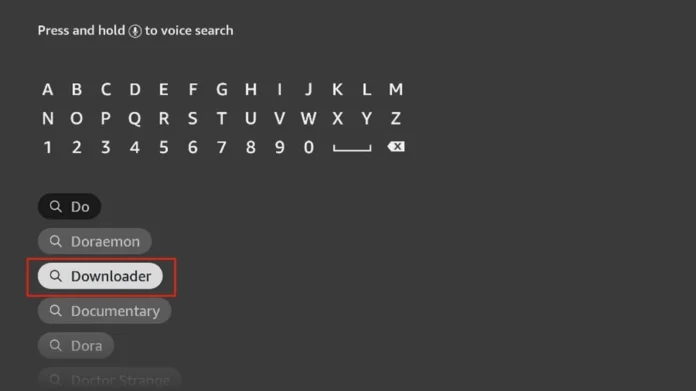
Step 2: Type Downloader in the search bar and install the Downloader app. You’ll use this to sideload the IBO Player.
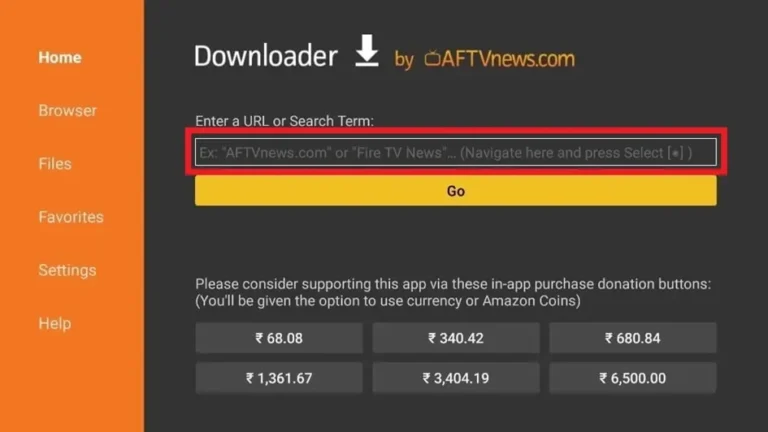
Step 3: Open Downloader and use the current IBO Player download method provided on the official IBO Player website.
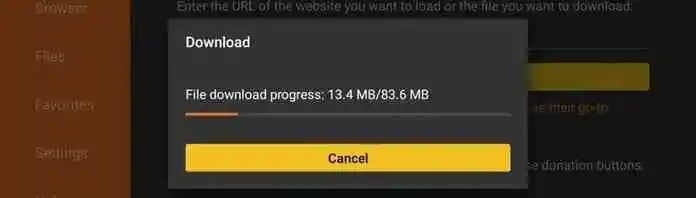
Step 4: Download the APK file, and once it’s finished, click Install.
Step 5: Open the IBO Player app after installation, and note the Device ID and Key.

Step 6: Visit the IBO Player Activation Website and input the Device ID and Key to activate. or Contact us Via Whatsapp
How to Set Up Marinios IPTV on Android TV with IBO Player
Step 1: On your Android TV, open the Google Play Store.
Step 2: Search for IBO Player and install the application.
Step 3: Open IBO Player and note the device information displayed on the screen.
Step 4: Add your Marinios IPTV playlist using the activation portal.
Step 5: Restart the application to load your channels and content.
How to Set Up Marinios IPTV on Windows & Mac with IBO Player
For a smooth Marinios IPTV Installation on Windows and Mac, follow the steps below.
Step 1: Download and install VLC Media Player from the official VLC website if you don’t have it installed already.
Step 2: Launch VLC on your PC/MAC.
Step 3: Navigate to Media > Open Network Stream:
Step 4: Enter the M3U URL provided with your Marinios IPTV subscription and select Play.
Step 5: Enjoy your IPTV content through VLC! Note that VLC doesn’t use the IBO Player interface, but it allows IPTV streaming.
How to Set Up Marinios IPTV on iPhone, iPad & Apple TV with IBO Player
Step 1: On your iPhone, iPad, or Apple TV, open the App Store.
Step 2: Search for IBO Player and click the Download button.
Step 3: Once installed, open the IBO Player app.
Step 4: Open IBO Player and note the device identifier and Device Key displayed by the app
Step 5: Open the official IBO Player playlist portal and enter the device information shown in the app to add your playlist.
How to Set Up Marinios IPTV on Android Phone & Tablet with IBO Player
Step 1: On your Android device, open the Google Play Store.
Step 2: Search for IBO Player and install the app.
Step 3: Once installed, open the app and note down the Device ID and Device Key shown on the screen.
Step 4: Go to the IBO Player Activation Website using a web browser, and input your Device ID and Key to activate the app.
How to Set Up Marinios IPTV on Android TV with IBO Player
Complete your Marinios IPTV Installation on Android TV by following these simple steps.
Step 1: Open Google Play Store on your Android TV.
Step 2: Search for IBO Player and install the application.
Step 3: Open IBO Player and note your Device ID and Device Key.
Step 4: Add your Marinios IPTV playlist using the activation portal.
Step 5: Restart the application to load your channels.
Step 6: Return to the main screen, and your IPTV channels should load within Perfect Player.
How to Set Up Marinios IPTV on MAG / IPTV Box
Step 1: Connect your MAG box to your TV and internet connection.
Step 2: Find your MAG device MAC address from the system information menu.
Step 3: Send your MAC address with your Marinios IPTV subscription details for activation.
Step 4: Open Settings > Servers > Portals on your MAG box.
Step 5: Enter the portal URL provided with your Marinios IPTV subscription.
Step 6: Save the settings and restart your MAG box to load your channels.
Need more help with your setup?
If you need help with your Marinios IPTV Installation, visit our FAQ for common setup questions, check our Pricing Plans, or Contact Support for assistance.